
QuickBooks simplifies accounting for small businesses by automating tasks such as bookkeeping, invoicing, time tracking, sales tax management, budgeting, bank reconciliation, and inventory tracking.
By using apps from our platform, these tasks can be further enhanced, allowing for the creation or updating of data in QuickBooks, including contacts, invoices, tracking categories, and timesheets.
To connect Forms On Fire with QuickBooks, you need to first establish a Connection. This setup enables Forms On Fire to share information with your QuickBooks account.
Once the connection is established, you can use Form Connectors to send data to QuickBooks or Data Source Connectors to retrieve information from it.
| Note: QuickBooks Online Connection is a premium service and requires a premium user subscription. |
Creating a Connection
Using the left-side navigation menu, select Connected Data > Connections.
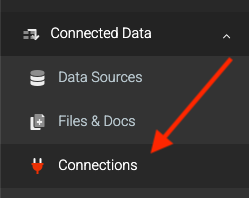
On the Connections page:
- Click the ADD CONNECTION button in the top-right corner to display a list of connections.
- Select the QuickBooks Online option.
Verifying a Connection
After adding a QuickBooks Connection, click the Authorize button and log into your QuickBooks account to permit Forms On Fire to send or retrieve data from your account.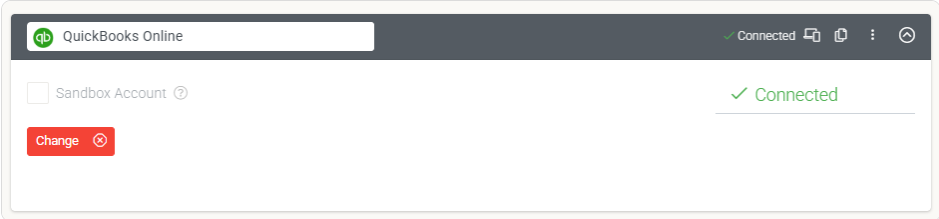
After logging in, click the Save button at the top right of the page. The connection will indicate "connected" status, confirming that Forms On Fire can now interact with your QuickBooks account.
You can now incorporate QuickBooks Form and Data Source Connectors to send and retrieve data from your QuickBooks account.
Sandbox Account
Facilitates testing via a QuickBooks sandbox account.
Website as a Service?
If you operate a branded website, it is necessary to enable QuickBooks Connections before you can add Connections.